
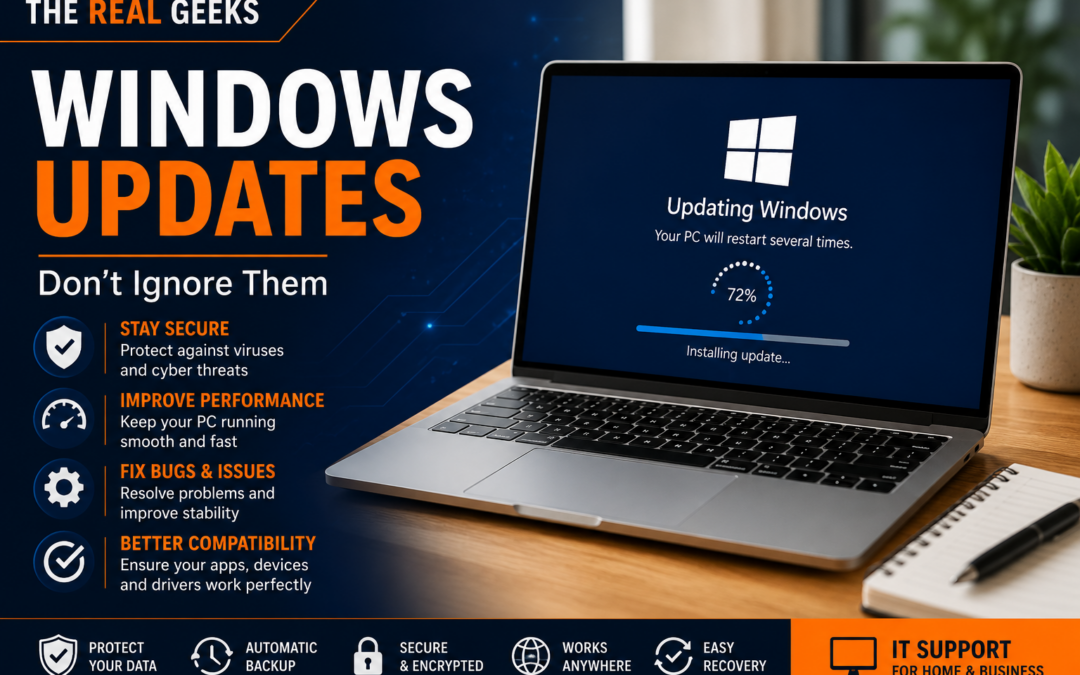
Why You Should Never Ignore Windows Updates (And What They Actually Do)
If you've ever clicked "Remind me later" when Windows asks you to install updates, you're not alone. Many people delay updates because they're busy or worried that something might go wrong.
However, ignoring Windows updates for weeks—or even months—can leave your computer slower, less secure, and more vulnerable to cyber threats.
In this guide, we'll explain what Windows updates actually do, why they're important, and how to keep your computer running safely and efficiently.
What Are Windows Updates?
Windows updates are released regularly by Microsoft to improve your computer's performance, security, and reliability.
They typically include:
- Security patches
- Bug fixes
- Performance improvements
- New features
- Driver updates
- Compatibility improvements
Think of them as routine maintenance that helps keep your computer healthy.
Why Are Windows Updates Important?
Many people assume updates only add new features, but the most important updates are actually security updates.
Hackers constantly look for weaknesses in Windows. When Microsoft discovers a vulnerability, they release an update to fix it.
If you don't install these updates, your computer remains exposed.
1. Protect Against Viruses and Hackers
Cybercriminals are always looking for computers running outdated software.
Installing Windows updates helps protect against:
- Malware
- Ransomware
- Spyware
- Data theft
- Security vulnerabilities
Keeping Windows updated is one of the simplest ways to improve your computer's security.
2. Improve Performance
Many updates include performance improvements that make Windows:
- Start faster
- Run more smoothly
- Use memory more efficiently
- Improve battery life on laptops
If your computer feels sluggish, installing pending updates may help.
3. Fix Annoying Bugs
Ever experienced:
- Programs freezing?
- Wi-Fi disconnecting?
- Bluetooth issues?
- Printing problems?
- Random crashes?
Windows updates often include fixes for these common issues.
4. Improve Compatibility
As software evolves, Windows also needs updating.
Updates ensure compatibility with:
- Microsoft 365
- Web browsers
- New printers
- Graphics cards
- Security software
- External devices
Without updates, newer hardware and applications may not work correctly.
5. Better Security for Online Banking
If you use your computer for:
- Internet banking
- Shopping
- Paying bills
- Managing passwords
Security updates are especially important.
They help protect sensitive information from newly discovered threats.
What Happens If You Ignore Updates?
Delaying updates can lead to:
- Slower performance
- Increased security risks
- Software compatibility issues
- More frequent crashes
- Printer and driver problems
- Unsupported versions of Windows
Eventually, older versions stop receiving security updates altogether.
Should You Install Updates Immediately?
For most home users, yes.
However, if a major feature update has just been released, it's reasonable to wait a few days to ensure there are no widespread issues.
Security updates, on the other hand, should generally be installed as soon as possible.
How to Check for Windows Updates
Checking for updates only takes a minute:
- Open Settings.
- Select Windows Update.
- Click Check for updates.
- Install any available updates.
- Restart your computer if prompted.
Enabling automatic updates ensures you don't have to remember to do this manually.
What If an Update Causes Problems?
Although uncommon, updates can occasionally cause issues.
If this happens:
- Restart your computer.
- Check for another update that fixes the issue.
- Roll back the update if necessary.
- Contact an IT professional if the problem continues.
Most update-related problems can be resolved quickly.
Tips for a Smooth Update Process
Before installing updates:
- Save your work.
- Keep your laptop plugged in.
- Back up important files.
- Allow enough time for the installation to finish.
- Avoid turning your computer off during the update.
These simple steps reduce the chance of interruptions.
Why Professional IT Support Helps
Managing updates across multiple devices can be time-consuming, especially for small businesses.
At The Real Geeks, we help homeowners and businesses:
- Install Windows updates
- Resolve update errors
- Optimise computer performance
- Remove malware
- Configure Microsoft 365
- Set up printers and Wi-Fi
- Maintain computers with regular health checks
Our goal is to keep your technology secure, reliable, and performing at its best.
Final Thoughts
Windows updates may seem inconvenient, but they're one of the easiest ways to protect your computer and improve its performance.
Spending a few minutes installing updates today can prevent much bigger problems tomorrow.
If your computer is running slowly, refusing to update, or showing repeated update errors, professional assistance can help get everything back on track.
Need Help with Windows Updates?
Whether your computer won't update, is running slowly, or you're experiencing software issues after an update, The Real Geeks is here to help.
We provide friendly onsite and remote IT support for homes and small businesses across Melbourne.
📞 Call us today on 0405 350 248 to book an IT health check or computer support service.