
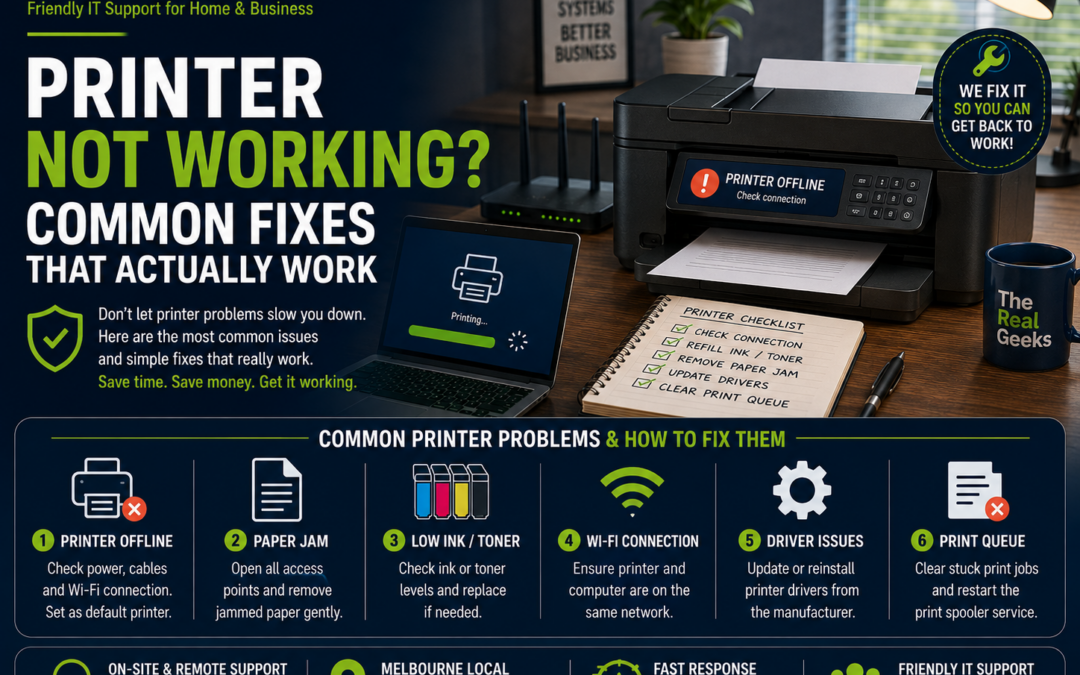
Printer Not Working? Common Fixes That Actually Work
Few things are more frustrating than clicking Print and nothing happens. Whether you're trying to print an important document for work, school, or home, printer problems always seem to appear at the worst possible time.
The good news is that many printer issues can be fixed in just a few minutes. Before assuming your printer is broken, try these common troubleshooting steps.
1. Check if the Printer Is Turned On
It may sound obvious, but it's one of the most common causes of printing problems.
Check that:
-
The printer has power.
-
The power cable is securely connected.
-
There are no warning lights or error messages.
-
The display screen doesn't show an error.
If everything looks normal, restart the printer before trying again.
2. Restart Your Printer and Computer
A simple restart often clears temporary software or communication issues.
Here's how:
-
Turn off the printer.
-
Restart your computer.
-
Turn the printer back on.
-
Wait until it's fully ready.
-
Try printing again.
This resolves many common printing issues.
3. Check Your Wi-Fi Connection
Wireless printers rely on a stable Wi-Fi connection.
If your printer has disconnected from the network, your computer won't be able to find it.
Check:
-
Is the printer connected to your home Wi-Fi?
-
Has your Wi-Fi password recently changed?
-
Has the modem or router been replaced?
Reconnect the printer to your Wi-Fi network if necessary.
4. Make Sure the Correct Printer Is Selected
Sometimes your computer sends the job to the wrong printer.
Before printing:
-
Open the Print menu.
-
Check the selected printer.
-
Choose the correct printer.
-
Try printing again.
This often happens if you've previously used another printer or saved documents with a different printer selected.
5. Check for Paper Jams
Even a small piece of paper can stop a printer from working.
Open all accessible covers and carefully inspect for:
-
Torn paper
-
Jammed sheets
-
Labels stuck inside
-
Foreign objects
Always remove paper gently to avoid damaging internal components.
6. Check Ink or Toner Levels
Many printers refuse to print when ink or toner is very low.
Look for:
-
Empty cartridges
-
Incorrectly installed cartridges
-
Cartridge error messages
Replacing a faulty or empty cartridge often solves the problem immediately.
7. Clear the Print Queue
Sometimes documents become stuck in the print queue.
On Windows:
-
Open Settings > Bluetooth & devices > Printers & scanners.
-
Select your printer.
-
Open the print queue.
-
Cancel all pending jobs.
-
Try printing again.
A stuck print job can prevent all other documents from printing.
8. Reinstall the Printer
If your printer keeps appearing as Offline, reinstalling it may solve the issue.
Remove the printer from your computer, restart both devices, then add the printer again.
Windows usually detects most modern printers automatically.
9. Update or Reinstall the Printer Driver
Printer drivers allow your computer to communicate correctly with the printer.
If the driver is outdated or corrupted, printing problems can occur.
Visit the manufacturer's website to download the latest driver for your printer model.
This is especially important after upgrading Windows or changing computers.
10. Check Network Printers
If multiple people use the same printer, check:
-
Is the printer connected to the network?
-
Is the Wi-Fi signal strong?
-
Has the printer been assigned a different IP address?
-
Has the router recently been replaced?
Network settings can sometimes change after internet equipment is upgraded.
11. Run the Printer's Cleaning Utility
Poor print quality is often caused by blocked print heads rather than hardware failure.
If you notice:
-
Missing colours
-
White lines
-
Faded printing
-
Blurry text
Run the printer's built-in maintenance or head cleaning utility.
Most manufacturers include this feature in their printer software.
12. Keep Your Printer Updated
Many modern printers receive firmware updates that improve:
-
Performance
-
Security
-
Wi-Fi reliability
-
Compatibility
Keeping your printer updated can prevent many common problems.
Common Printer Error Messages
Some messages appear more often than others:
-
Printer Offline
-
Paper Jam
-
Low Ink
-
No Paper
-
Printer Not Responding
-
Driver Unavailable
-
Cannot Communicate with Printer
-
Printer Error
Most of these can be resolved by following the steps above.
How to Prevent Printer Problems
A little maintenance goes a long way.
Here are a few simple tips:
-
Print something every few weeks to prevent ink drying out.
-
Use genuine or high-quality compatible ink cartridges.
-
Keep your printer clean and dust-free.
-
Install software and firmware updates.
-
Don't ignore low-ink warnings.
-
Turn the printer off properly when not in use.
Regular care helps extend the life of your printer and improves reliability.
When Should You Call an IT Professional?
If you've tried these fixes and your printer still isn't working, the problem may involve:
-
Faulty hardware
-
Network configuration
-
Driver conflicts
-
Wi-Fi issues
-
Operating system problems
Rather than spending hours troubleshooting, professional assistance can often resolve the issue quickly.
Why Choose The Real Geeks?
At The Real Geeks, we help homeowners and small businesses across Melbourne with all types of printer and computer issues.
Our services include:
-
Printer setup
-
Wireless printer installation
-
Network printer configuration
-
Driver installation
-
Scanner setup
-
Print quality troubleshooting
-
Wi-Fi troubleshooting
-
Computer support
-
Remote and onsite IT assistance
We'll get your printer working again so you can get back to what matters.
Final Thoughts
Most printer problems aren't caused by faulty hardware. They're often related to Wi-Fi, drivers, print queues, or simple settings that can be corrected in just a few minutes.
Following the steps in this guide can solve many common issues without replacing your printer.
If you're still having trouble, professional support can save you time and frustration.
Need Help with Your Printer?
Whether your printer won't print, keeps showing Offline, or won't connect to Wi-Fi, The Real Geeks is here to help.
We provide fast, friendly onsite and remote printer support for homes and small businesses throughout Melbourne.
📞 Call us today on 0405 350 248 and let us get your printer working again.