
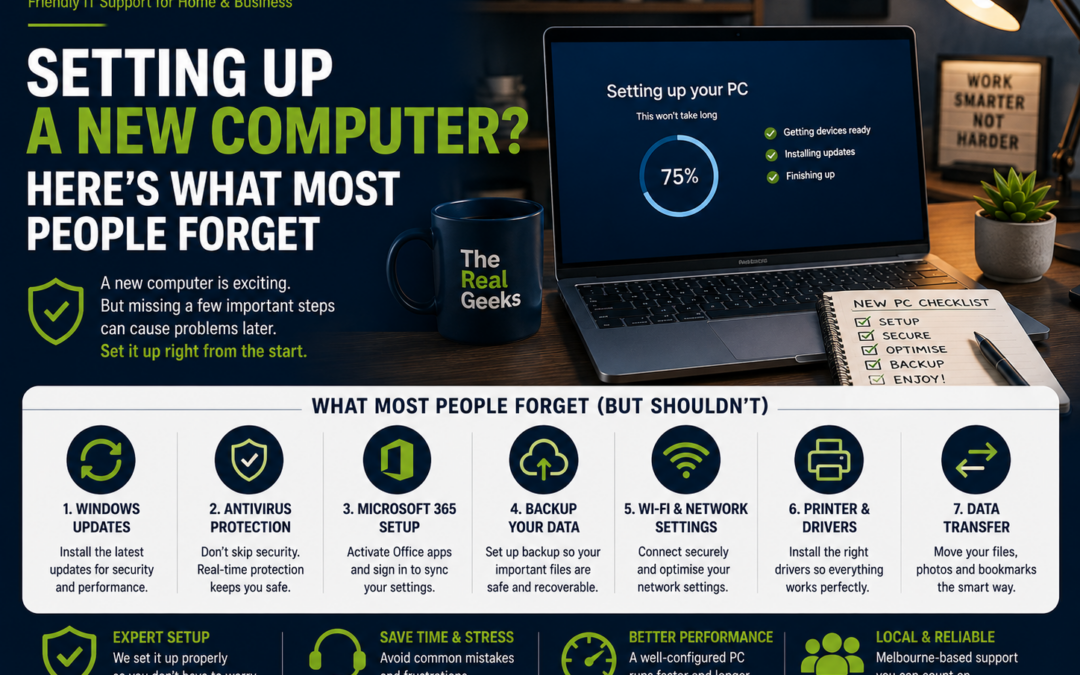
Setting Up a New Computer? Here's What Most People Forget
Buying a new computer is exciting. It's faster, more reliable, and packed with the latest features. However, many people focus on unboxing and switching it on, only to discover later that important files are missing, software isn't installed, or security settings haven't been configured.
Whether you've purchased a new Windows PC or Mac for your home or small business, taking a little extra time during the setup process can save hours of frustration later.
Here are the most common things people forget when setting up a new computer.
1. Transfer Important Files
Before retiring your old computer, make sure you've copied everything you need.
Don't forget:
-
Documents
-
Photos
-
Videos
-
Downloads
-
Music
-
Desktop files
-
Email archives
-
Browser bookmarks
Using an external hard drive or cloud storage makes transferring files much easier.
2. Install Windows Updates
Your new computer may have been sitting in a warehouse for months before you bought it.
That means it's likely missing important:
-
Security updates
-
Driver updates
-
Performance improvements
-
Bug fixes
What to do:
Go to Settings > Windows Update and install all available updates before using your computer regularly.
3. Remove Unwanted Software
Many new computers come with trial software and unnecessary applications that slow down performance.
Examples include:
-
Antivirus trials
-
Games
-
Manufacturer utilities
-
Shopping apps
Removing software you don't need helps keep your computer running faster.
4. Install the Software You Actually Use
A new computer doesn't automatically include all your favourite programs.
Make a list of the software you use regularly, such as:
-
Microsoft 365
-
Google Chrome
-
Adobe Acrobat Reader
-
Zoom
-
Teams
-
Accounting software
-
Photo editing software
-
Printer software
Installing everything at the beginning saves time later.
5. Secure Your Computer
One of the biggest mistakes people make is skipping security setup.
Make sure you:
-
Create a strong password.
-
Enable Windows Security or install trusted antivirus software.
-
Turn on your firewall.
-
Enable Multi-Factor Authentication (MFA) where available.
-
Keep automatic updates enabled.
Good security protects your personal information and reduces the risk of cyber threats.
6. Set Up Automatic Backups
Imagine losing years of family photos because your hard drive fails.
Protect your data by enabling automatic backups.
Options include:
-
OneDrive
-
Google Drive
-
External hard drive backups
-
NAS (Network Attached Storage)
A backup is only useful if it's recent, so automate the process wherever possible.
7. Connect Your Printer Properly
Many people connect a printer using the basic Windows driver.
While this often works, installing the manufacturer's software usually unlocks additional features such as:
-
Scanning
-
Wireless setup
-
Ink monitoring
-
Advanced print settings
Always download the latest drivers from the printer manufacturer's website.
8. Connect to Your Home Wi-Fi Correctly
A fast new computer won't perform well if your Wi-Fi is slow.
Once connected:
-
Test your internet speed.
-
Check signal strength in different rooms.
-
Restart your modem if needed.
-
Consider upgrading to a Mesh Wi-Fi system if you have weak coverage.
Reliable Wi-Fi is essential for software updates, video calls, and cloud services.
9. Sign In with the Correct Accounts
Many people accidentally create duplicate accounts during setup.
Take a moment to confirm you're signing in with the correct:
-
Microsoft account
-
Apple ID
-
Google account
-
Microsoft 365 account
Using the right account ensures your files, subscriptions, and settings sync correctly.
10. Protect Your Privacy
New computers often have privacy settings enabled by default that may collect more data than you'd like.
Review:
-
Location settings
-
Camera permissions
-
Microphone permissions
-
Advertising preferences
-
Diagnostic data sharing
Adjust these settings to suit your privacy preferences.
11. Install Your Printer, Scanner & Other Devices
After setting up your computer, reconnect any devices you use regularly, including:
-
Printers
-
Scanners
-
External hard drives
-
Webcams
-
Speakers
-
Monitors
-
Keyboards and mice
Testing everything early helps identify any driver or compatibility issues.
12. Create a Restore Point
Once your computer is fully configured and working properly, create a system restore point.
If something goes wrong in the future, you'll have a stable version of Windows to return to.
It's a simple step that many people overlook.
Common Mistakes to Avoid
Avoid these common setup mistakes:
-
Skipping Windows updates
-
Using weak passwords
-
Forgetting to back up your old computer
-
Ignoring security settings
-
Installing software from untrusted websites
-
Leaving unnecessary programs running at startup
-
Not checking that your files transferred correctly
A little extra care during setup can prevent many headaches later.
Why Professional Setup Is Worth It
If you're not confident setting up a new computer yourself, professional assistance can ensure everything is configured correctly from day one.
At The Real Geeks, we help homeowners and small businesses across Melbourne with:
-
New computer setup
-
File and data transfer
-
Microsoft 365 installation
-
Printer setup
-
Wi-Fi configuration
-
Email setup
-
Security configuration
-
Software installation
-
Backup solutions
-
Ongoing IT support
We make sure your new computer is secure, fully updated, and ready to use.
Final Thoughts
A new computer is an investment, and setting it up properly helps you get the best performance, security, and reliability from day one.
By taking the time to update your system, transfer your files, install the right software, and secure your device, you'll avoid many of the common problems people experience after buying a new computer.
Need Help Setting Up Your New Computer?
Whether you've just purchased a laptop or desktop, The Real Geeks can take care of the entire setup process.
We'll transfer your files, install your software, connect your devices, optimise your settings, and make sure everything is working exactly as it should.
📞 Call us today on 0405 350 248 for friendly onsite or remote computer setup services across Melbourne.